Team Generation Settings
Once you've selected your athletes, configure how you want teams to be created.
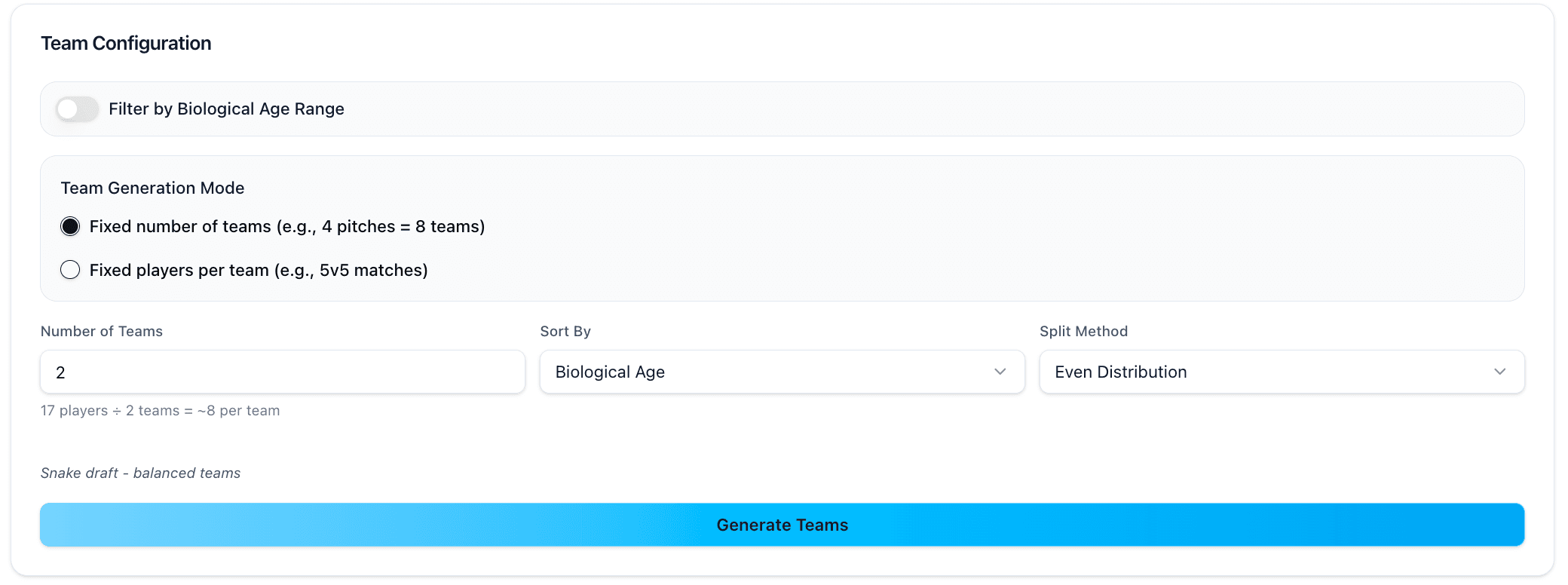
Biological Age Range Filter (Optional):
You can optionally filter athletes by a specific biological age range before generating teams. Toggle this on if you want to create groups only for athletes within a certain maturity window.
For example, you might set 12.0-13.5 years to create a band specifically for early adolescents, even if you have older or younger athletes selected.
If the filter excludes athletes, you'll see a notification showing how many players were filtered out.
Team Generation Mode:
Choose between two approaches based on your session constraints.
Fixed number of teams works when you have a specific number of pitches or game areas. For example, "I have 4 pitches available, so I need 8 teams." Enter the number of teams, and the tool distributes athletes evenly across them.
The tool shows you a preview: "20 players ÷ 4 teams = ~5 per team" so you can verify the math before generating.
Fixed players per team works when you have a specific game format in mind. For example, "I want 5v5 matches" or "I'm running 7v7 games." Enter the number of players per team, and the tool creates as many complete teams as possible.
The tool previews: "20 players ÷ 5 per team = 4 teams" so you know what to expect.
Sort By Parameter:
Choose which metric to use as the primary sorting factor when creating teams.
Biological Age is the most common choice. Teams will be sorted so that athletes of similar biological maturity are grouped together.
Predicted Adult Height helps group athletes who are heading toward similar final sizes, even if they're currently at different stages.
Maturation Category sorts by early/on-time/late maturer classifications.
The tool uses this parameter to first sort all athletes, then distributes them into balanced teams.
Split Method:
This determines how sorted athletes are distributed across teams.
Even Distribution: This is the recommended default. After sorting, athletes are distributed in a snake draft pattern. If you have 4 teams and athletes sorted by bio age from youngest to oldest, the athletes get allocated to each team from youngest to oldest and reverses.
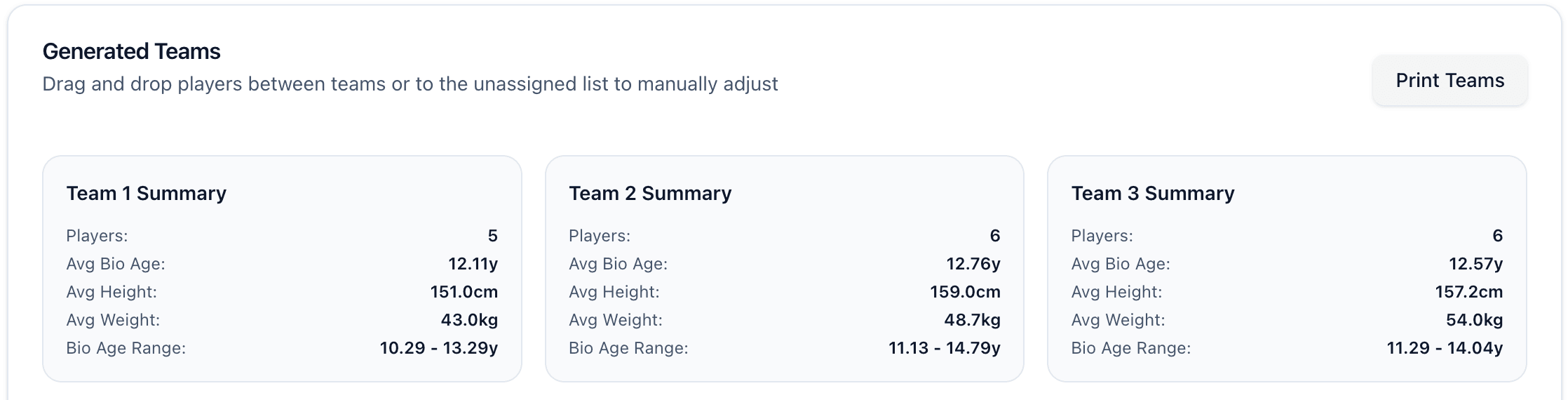
This creates the most balanced teams because both ends of the maturity spectrum are evenly distributed. Teams end up with similar average biological ages and similar ranges.
Grouped Ranges: Athletes are divided into consecutive blocks. First quarter of sorted athletes go to Team A, second quarter to Team B, etc.
This creates distinct maturity tiers. Team A will have all the youngest/least mature athletes, Team B the next tier up, and so on. Use this when you specifically want separate developmental levels competing against similar levels.
Random Within Bands: Athletes are sorted first, then randomized before distribution. They're then distributed in simple rotation. This maintains some of the sorting benefits while adding variety.
This creates balanced teams with less predictable distribution than snake draft. Good when you want some randomness but still respect the general maturity sorting.
Choosing the right split method:
For most bio-banded sessions, use Even Distribution. It creates the fairest, most balanced teams where all groups have similar maturity profiles.
Use Grouped Ranges only if you want distinct tiers. For example, creating a "junior bio-band" and a "senior bio-band" from the same athlete pool.
Use Random Within Bands when you want balanced teams but with less predictable player combinations. Good for keeping sessions fresh while maintaining developmental appropriateness.
Generate Teams:
Once you've configured all settings, click "Generate Teams." The tool will create balanced groups based on your specifications.
You'll see a preview showing how many teams were created and how many athletes are in each. If you don't like the result, you can change settings and regenerate.