Guide·7 min read

How to Set Up an Organisation

How to create an academy, register coaches for free, and link your whole coaching staff to one shared workspace.

Free for coaches: any coach can register at no cost — no subscription needed to join
One subscription: the manager's subscription covers all linked coaches in the organisation
Shared workspace: all coaches see the same athletes, sessions, and reports

Overview: What Organisations Do

An organisation in MatCalc (also called an Academy) is a shared workspace that lets multiple coaches work from the same pool of athletes and data. Instead of each coach maintaining their own separate list, everyone in the organisation sees the same athletes, the same assessments, and the same reports.

Why this matters:

In most clubs and academies, more than one person touches an athlete's development. A head of performance might oversee the programme while sport-specific coaches handle the sessions. An S&C coach might run fitness testing while age-group coaches run biobanding sessions. Without a shared workspace, data ends up siloed and athletes get assessed inconsistently.

What organisations enable:

Any coach linked to the organisation can view athlete profiles, access maturation reports, run biobanding sessions, log fitness tests, and review injury risk data. Managers can also add and remove coaches from the organisation.

The two roles inside an organisation:

Manager — can do everything a coach can, plus add or remove other coaches and assign manager status. The coach who creates the organisation is automatically a manager.

Coach — full access to athlete data and all tools. Cannot modify who is in the organisation.

What you need before you start:

An active MatCalc subscription is required to create an organisation. Any coach you want to add must already have a MatCalc account — even if it is a free account with no subscription of their own.
Step 1: Coaches Register for Free

Before you can add a coach to your organisation, they need a MatCalc account. Coaches can register for free with no subscription required.

How to register:

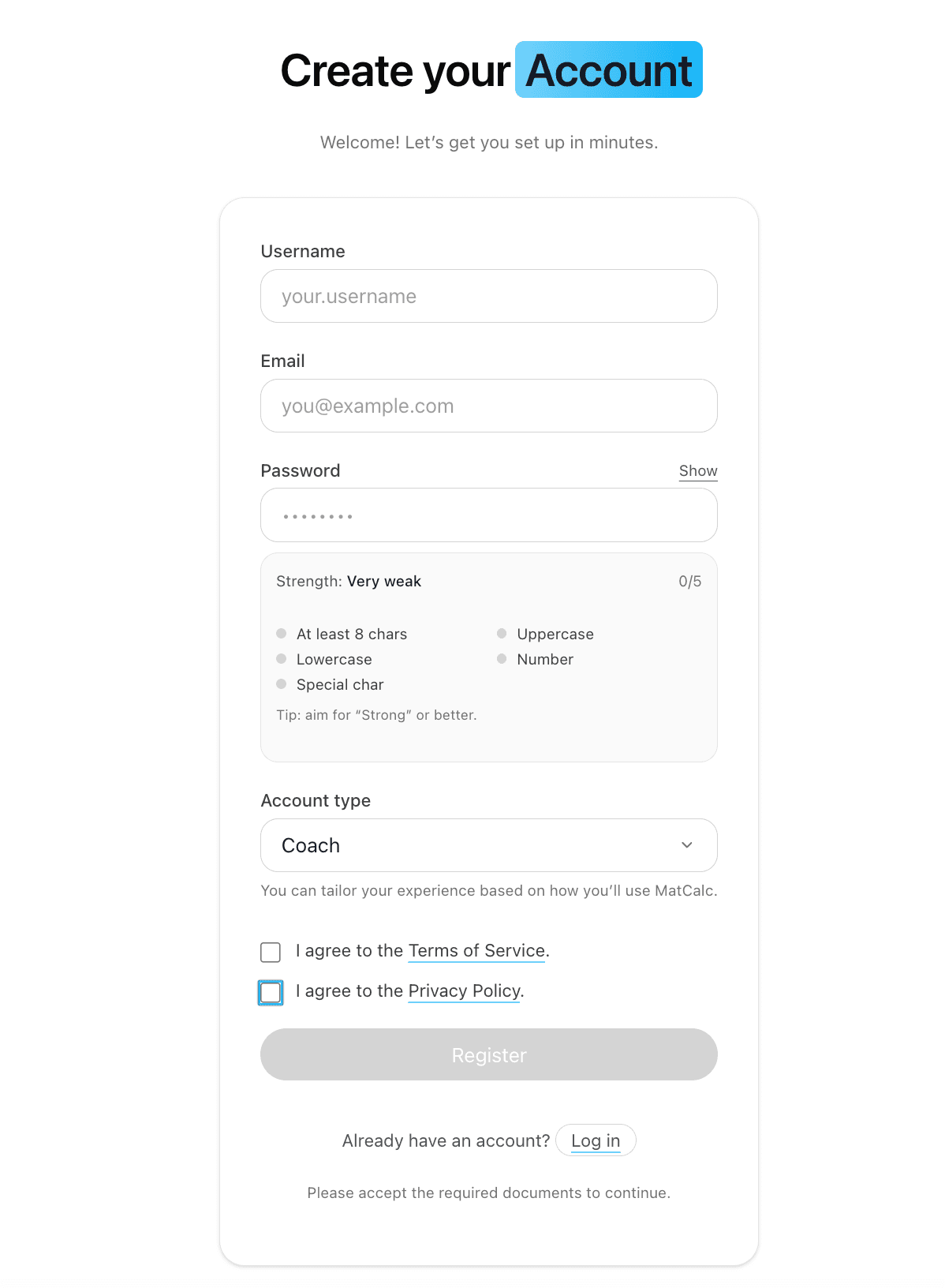
Go to matcalc.co.uk/register and complete the form.

  • First name and last name
  • Email address — this is what you will use to log in and what organisation managers use to find you
  • Username — a short handle used as an alternative identifier
  • Password

Select Coach as the account type during registration.

Free accounts:

A free coach account gives access to the platform but not to paid features like running assessments or generating individual reports. Those require a subscription, held by whoever manages the organisation. When a manager adds a free coach to their organisation, that coach can use all tools within the organisation under the manager's subscription.

This means you do not need every coach on your staff to have their own paid subscription. One subscription at the organisation level covers the whole team.

After registering:

The coach will receive a confirmation email. Once verified, they can log in. Their account is now ready to be added to an organisation. They do not need to do anything else on their end — the manager handles the linking step.

MatCalc registration form with Coach selected as the account type

Step 2: Create Your Organisation

Organisation creation is done from your account settings page. You need an active MatCalc subscription to do this.

Where to find it:

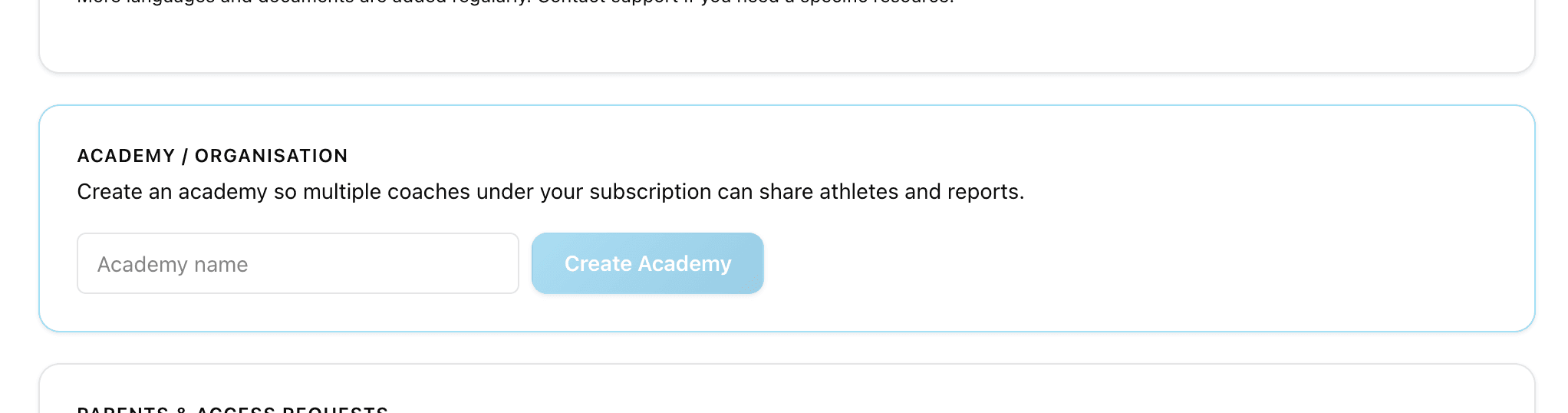
Go to Account Settings. Scroll down to the Academy / Organisation section. If you are not already part of an organisation, you will see a text field and a "Create Academy" button.

Creating the organisation:

Enter a name for your academy or organisation. This is the name other coaches will see when they are added. Use something that clearly identifies your club or programme — for example "Northfield FC Academy" or "Ridgeway Performance Centre."

Click Create Academy. The organisation is created immediately and you are set as its first manager.

A few things to know:

Organisation names must be unique across the platform. If the name you want is already taken, you will see an error and can try a variation.

You can only be part of one organisation at a time. If you are already linked to an organisation, the create option will not appear.

Once created, the section updates to show your organisation name, your role (Manager), and the coaches currently in it — starting with just you.

Account settings page showing the Academy / Organisation section with the name input and Create Academy button

Step 3: Add Coaches to Your Organisation

Once your organisation exists, you can start adding coaches. This is a manager-only action.

Where to find it:

Go to Account Settings and scroll to the Academy / Organisation section. At the bottom of the section (visible to managers only) you will see an "Add coach to this academy" input.

How to add a coach:

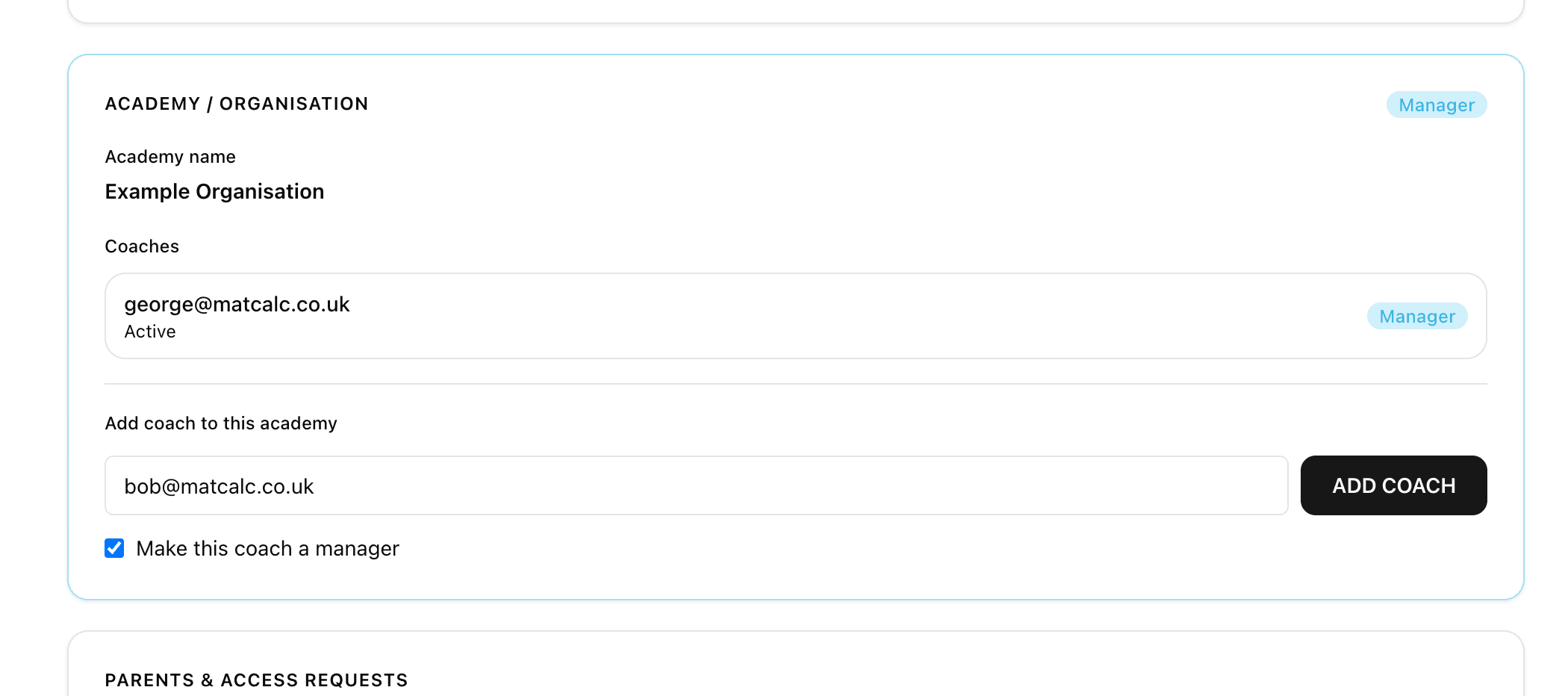
Enter the coach's email address, username, or referral code in the input field. Click Add Coach. If the account is found and eligible, they are added immediately and appear in the coaches list.

What "eligible" means:

The coach must already have a MatCalc account with a coach or club_admin role. If someone has registered as a parent or athlete, they cannot be added to a coaching organisation.

A coach can only be in one active organisation at a time. If the person you are adding is already linked to a different organisation, you will see an error.

The identifier field accepts three things:

Email — the address the coach used to register. Most reliable option.

Username — the short handle they chose during registration. Useful if you know it.

Referral code — generated from the coach's profile. Coaches can find their referral code in their account settings and share it with you directly.

Making a coach a manager:

Before clicking Add Coach, check the "Make this coach a manager" checkbox. Managers can add and remove other coaches. You can do this at the point of adding, or you can remove and re-add a coach later to change their role.

Removing a coach:

Each coach in the list has a Remove button (visible to managers only). Removing a coach revokes their access to the shared organisation data. Their own account stays active — they just return to an individual account with no organisation link.

Organisation section showing the coaches list with manager badges and the Add Coach input field

What Linked Coaches Can Access

Once a coach is part of your organisation, they have access to the same tools and data as you.

Shared access includes:

All athletes registered under the organisation. Maturation assessments and reports for those athletes. The biobanding tool and any saved sessions. Fitness testing data and load management records. Injury risk reports.

Each coach works independently within the shared space:

If one coach saves a biobanding session, it shows up in the session log for all coaches in the organisation. If another coach adds a rating to an athlete in that session, the rating is attributed to them by name. Everyone can see each other's contributions, which creates a shared coaching record over time.

Subscription and billing:

The subscription that covers the organisation belongs to the manager who created it. Coaches added to the organisation access tools under that subscription. They do not need their own paid plan unless they want to run an independent organisation of their own.

Coaches can see but cannot change organisation membership:

Any coach in the organisation can see the full list of coaches in the Academy / Organisation section of their account. Only managers can add or remove coaches.

Managing Your Organisation Over Time

Organisations tend to evolve as staff changes. Here is how to keep things tidy.

When a coach leaves:

Go to Account Settings and find them in the coaches list. Click Remove. Their access is revoked immediately. Their historical contributions — ratings, session data — remain in the record attributed to their name.

Adding a second manager:

If you want another coach to be able to manage the roster (useful if you are the head of performance but a club administrator handles the day-to-day), add them with the "Make this coach a manager" option ticked. There is no limit on how many managers an organisation can have.

If a coach cannot be found:

The most common reason is a typo in their email or username. Ask the coach to confirm the email they registered with. The second most common reason is they registered with a parent or athlete account rather than a coach account — they would need to register again with the correct account type.

If you need to change the organisation name:

Organisation name changes are not currently available through the UI. Contact support if you need a name correction.

One organisation per coach:

A coach can only be in one active organisation at a time. If you want to move a coach from one organisation to another, they need to be removed from the current one first.

Tips for setting up your organisation

  • Ask coaches to register before you start. You cannot add someone who does not have an account yet. Get your staff signed up first, then create the organisation and link everyone in one go.
  • Use email as the identifier. Emails are unique and unambiguous. Usernames are easier to mistype.
  • Assign at least one other manager. If you are the only manager and you leave the organisation, no one else can add or remove coaches. Promote a trusted colleague as a backup.
  • One subscription covers the team. Linked coaches do not need their own paid plan. Only the organisation creator needs an active subscription.
  • Remove coaches promptly when they leave. Revoking access is immediate and prevents former staff from continuing to view athlete data.
  • Organisation names are permanent for now. Choose something that will still make sense in two years. Contact support if you need a correction.